

WordCamp Europe 2026: Add Sessions to Your Calendar in One Click!
WordCamp Europe 2026 is heading to beautiful Kraków, Poland! With two packed days of sessions across multiple tracks and workshops, keeping your personal schedule straight can be a real challenge.
Last year I made a similar script for WordCamp US 2025, but it had some limitations — it only worked on individual session pages, only supported Google Calendar, and couldn’t detect session length. This time I went quite a bit further.
What It Does
This Tampermonkey script runs in your browser on the official WordCamp Europe 2026 site and adds calendar buttons to every session. Here’s what’s new compared to last year’s version:
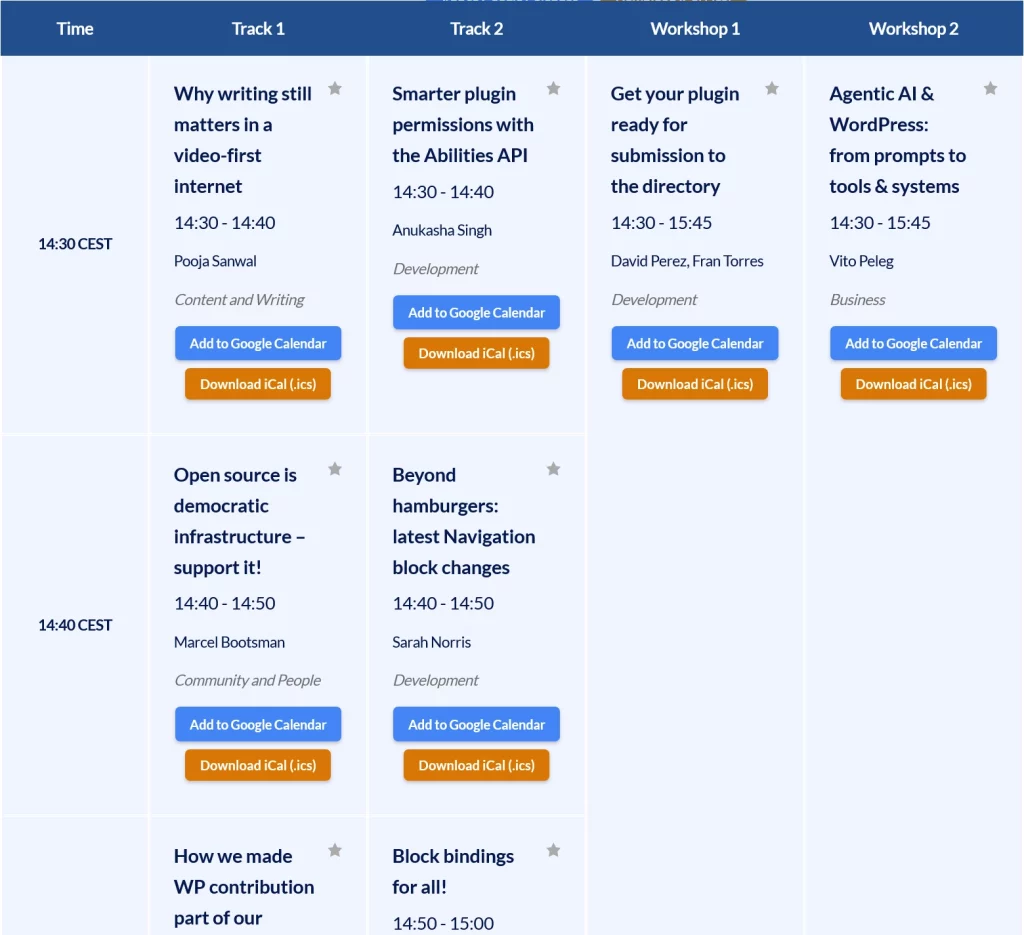
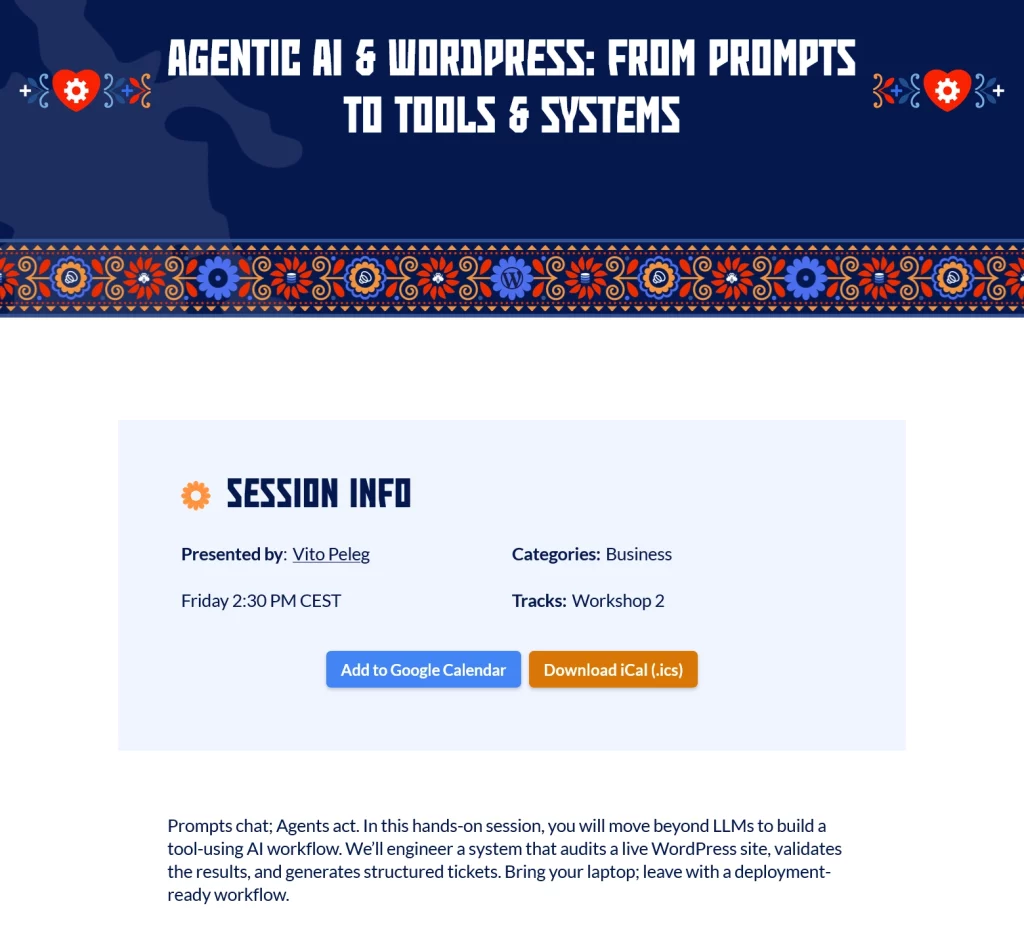
Buttons on Both Pages
Unlike the WCUS version, this script works on both the main schedule page and individual session pages. Every session gets two buttons:
- Add to Google Calendar — opens Google Calendar with the session pre-filled.
- Download iCal (.ics) — downloads a standard
.icsfile that works with Apple Calendar, Outlook, Thunderbird, Proton Calendar, and basically every calendar app that isn’t Google.
Smart Session Details
The script automatically picks up:
- Session title
- Start and end times parsed from the schedule grid
- Track or workshop, e.g. Track 1, Workshop 2
- Speaker names
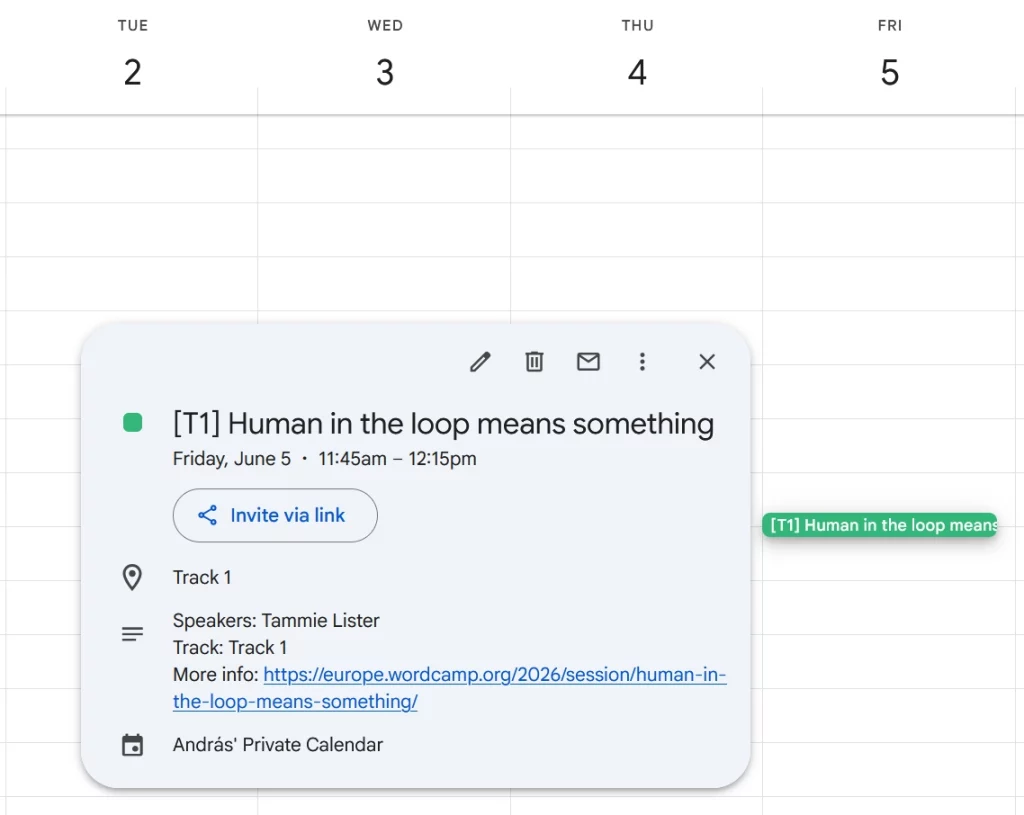
The track is used in two places: as a short prefix in the event title (e.g. [T1], [W2]) so you can see at a glance where to go, and as the calendar event’s location field.
The event description includes the speaker(s), track, and a link back to the session page for more details.
Bulk Export Your Favourites
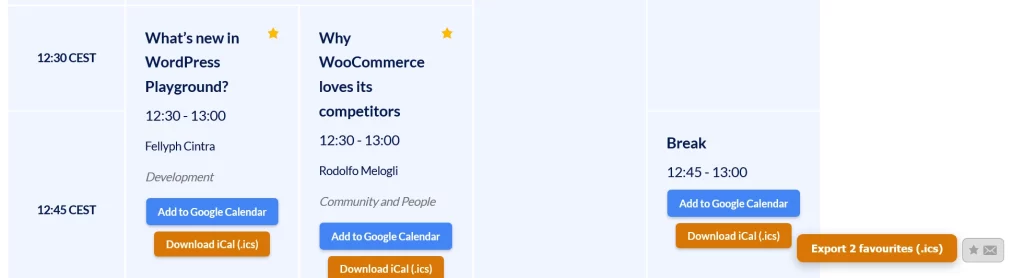
This is the feature I’m most excited about. The WordCamp schedule lets you star your favourite sessions. This script detects those favourites and shows a floating “Export X favourites (.ics)” button.
Click it, and you get a single .ics file with all your starred sessions. Import it into any calendar app and your whole personalised conference schedule is there — times, tracks, speakers, and all.
The button updates its count live as you star and unstar sessions.
How to Install It
- Install the Tampermonkey extension for your browser from tampermonkey.net (it’s free).
- Click this link to install the script. Tampermonkey will recognise it and offer to install it for you.
- Navigate to the WCEU 2026 schedule or any individual session page. The buttons will appear automatically.
You can also check out the source on GitHub. To install from there, click the Raw button on the right side.
Good to Know
- The default session length is 30 minutes if the schedule doesn’t provide an end time. You can always adjust it in your calendar after adding.
- The
.icsfiles use UTC times, which every calendar app handles correctly. Your events will show up in your local timezone automatically. - If you import the same session twice (e.g. from the bulk export and then individually), most calendar apps will recognise the duplicate and skip it, thanks to the stable event UIDs.
Browser Compatibility
The script requires a userscript manager extension like Tampermonkey. Here’s how it works across browsers:
- Firefox (desktop and mobile): Works out of the box. Install Tampermonkey, install the script, done.
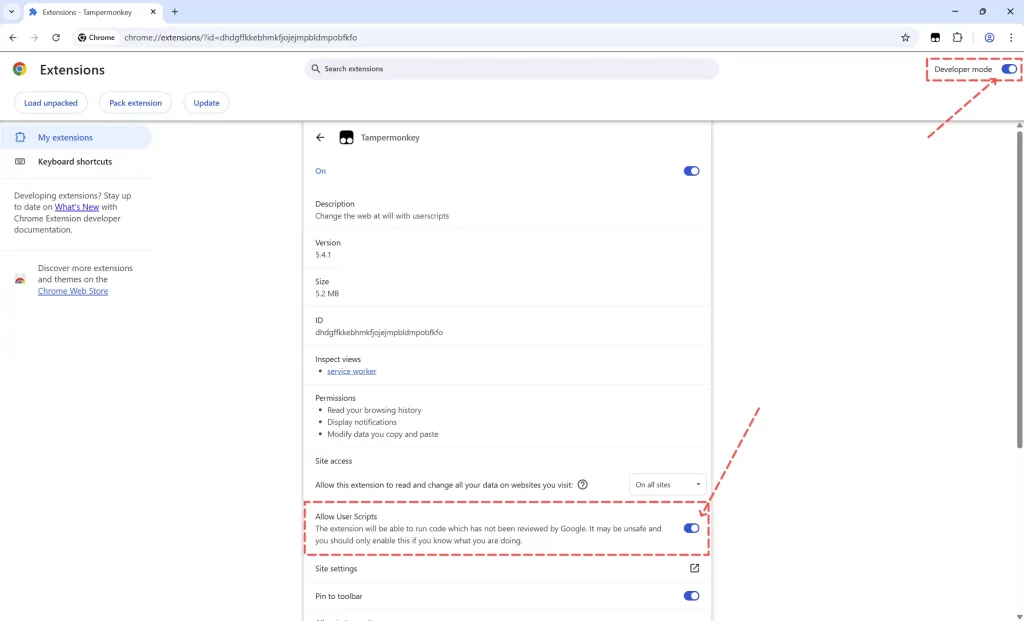
- Chrome, Edge, Vivaldi (and likely other Chromium browsers): Works, but you need to enable two settings first:
- Go to
chrome://extensions/(or the equivalent extensions page) and turn on Developer Mode (toggle usually in the top-right corner). - Click on the Tampermonkey extension’s Details, and enable Allow User Scripts (or look for this option in Tampermonkey’s own settings).
- Go to
- Other Chromium browsers (Brave, Opera, etc.): Should work the same way — enable Developer Mode and Allow User Scripts. Your mileage may vary.
Secret Hope
Same as last year: I hope that whoever is maintaining the plugin powering WordCamp schedules will add calendar export as a core feature. The infrastructure is right there — the schedule grid already encodes all the timing data we need. 🤞
See you in Kraków!